How to forget a configured Wi-Fi network on Linux
In this article, we will explain how to forget a configured Wi-Fi network on Linux.
UMH has a wireless network, conceived as an alternative connection method to traditional cable connections. This aims to meet the needs of users who require dynamic and flexible occasional connections.
Coverage is total in common use or temporary stay areas such as libraries, meeting rooms, auditoriums, lobbies or large distributors, reading or study rooms, cafeterias, etc.
There are three types of connections available:
- Secure connection: Iumhnet
- Open connection: Iumhweb
- Secure connection: eduroam
Detailed guide
We will explain the steps with the two most used environments, GNOME and KDE.
GNOME
- Click on the “Show Applications” icon located on the left bar.

- Click on the Settings icon.
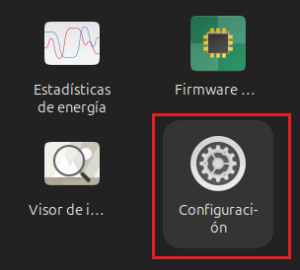
- Click on the gear icon located on the right side of the network you are connected to.

- Click on the “Forget connection” button.
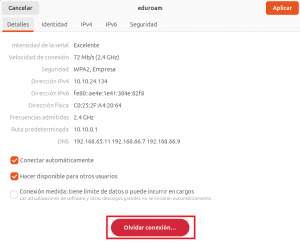
- Finally, click “Forget“.

KDE
- Click on the network icon located on the right side of the taskbar.

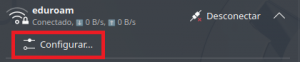
- Click on the expand icon located on the right side of the network you are connected to.

- Click on “Configure“.
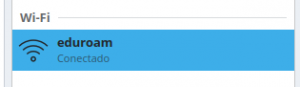
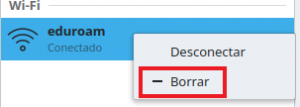
- Right-click on the network.
- Click on “Delete“.
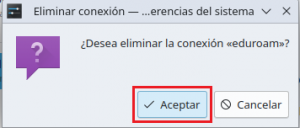
- Finally, click “Accept“.