How to set up a shared drive on macOS
In macOS environments, there is no automatic process to start shared drives automatically; it is necessary to connect them manually. The screenshots in this article correspond to macOS Sierra, but the steps are common to other versions of macOS.
Detailed guide
- Open the Finder application.
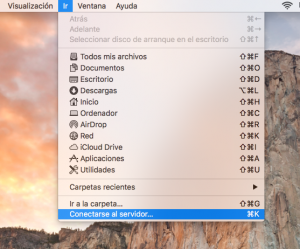
- Go to the Go menu, and select the Connect to Server… option.
- If the shared drive corresponds to a group drive, the server address will be
smb://discodered.umhnet.es/qy_xxx$wherexxxwill be the name of the folder. Next, click on the + symbol to add it to favorites. Finally, click Connect.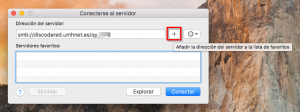
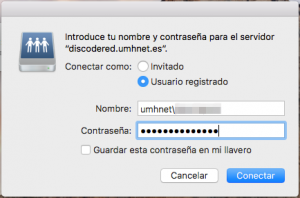
- Since access to network resources is protected, it will ask for credentials. Once we enter the credentials, click the Connect button.
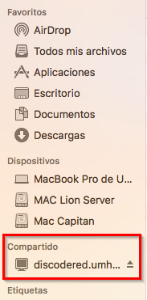
- While connected, the access will appear in the sidebar in Finder.