How to recover a previous version of a deleted document from a shared drive on Windows
For files stored on shared drives, a series of backups called previous versions are made. These backups can be easily restored from our computer. The screenshots in the article are from Windows 10, but the procedure is similar for other versions of Windows.
Detailed guide
- Access the network drive where you want to recover deleted files.
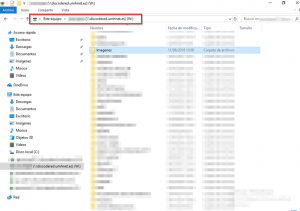
- Enter the folder where you want to recover the files. Check that in this case there are no files.
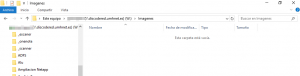
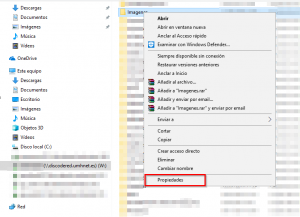
- Exit the folder and select it. Then, right-click and select Properties from the dropdown menu.
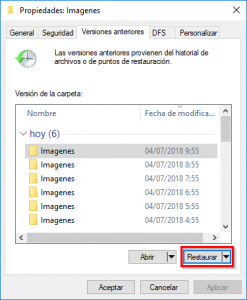
- In the properties window, select Previous Versions.
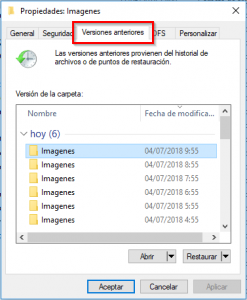
- If you are sure you want to restore the entire folder to the version you had at a certain time, select the version and click the Restore button. If you only want to recover some files, continue to step 7.
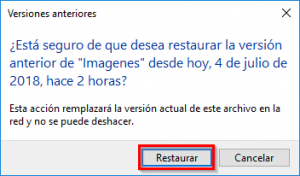
- A warning will appear. It is necessary to be clear that all files in the folder will be restored to the selected version. If you have doubts, it is recommended to contact the CAU. If you are sure, click Restore and all files will be recovered in the original folder.
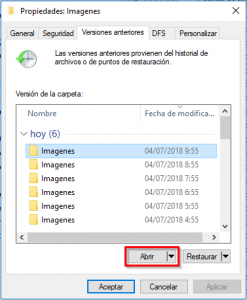
- If you do not want to restore the entire folder, you must select Open.
- You will see the folder, but the files will be those that were there at the time the version was created.
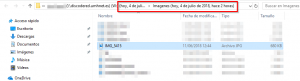
- From this version, you can copy any file to the desired location.