How to set up multi-factor authentication (MFA) on other devices
If you already have multi-factor authentication (MFA) enabled and want to set it up on the Authenticator browser extension or other devices:
- Log in to your account:
- Log in to your personalized access at universite.umh.es and look for the application: Security.

- Log in to your personalized access at universite.umh.es and look for the application: Security.
- MFA configuration:
- Select the Multi-factor configuration tab.
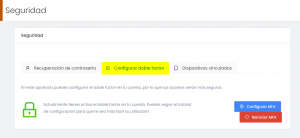
- Click on the blue Configure MFA button.
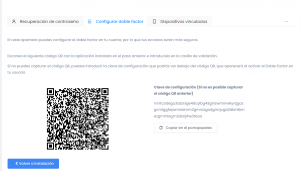
- Select the Multi-factor configuration tab.
- Scan the QR code:
- A QR code will be displayed that can be used for the Authenticator browser extension or other mobile applications like Google Authenticator. You can also use the Configuration Key to add it manually.
- If you want to use the Authenticator extension, click on the extension icon.
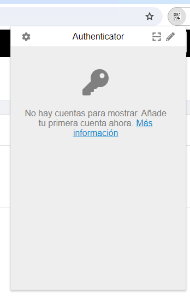
- Click on the scan icon.
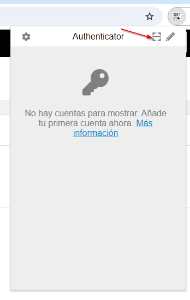
- An animation will appear indicating that you need to select the area where the QR code is located with the mouse.
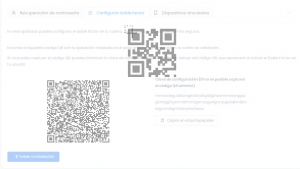
- If the process is successful, a message will appear at the top of the browser indicating that MFA has been configured.
- Manual configuration:
- If you cannot add it with the QR code, you can do it manually by selecting the pencil icon.

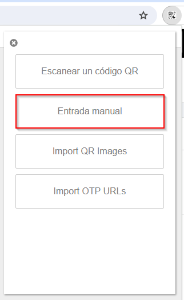
- Next, select the icon with the “+” symbol and the Manual Entry option.
- In issuer, enter UMH and in Secret Key, enter the Configuration Key that you copied earlier.
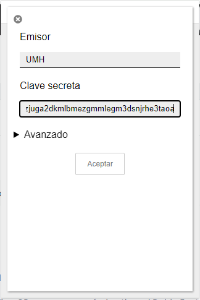
- Finally, click Accept.
- If you cannot add it with the QR code, you can do it manually by selecting the pencil icon.