How to export a digital certificate on a Windows system
Recognized certificates for citizens issued by ACCV allow their holders to identify themselves and carry out electronic procedures securely with Public Administrations and private entities, as well as sign electronically.
In this article, we will describe how to export your digital certificate to install it on another device.
Detailed guide
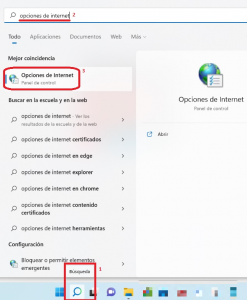
- In the bottom bar, select the Magnifying Glass, then type “Internet Options”. Next, click on the “Internet Options” application.
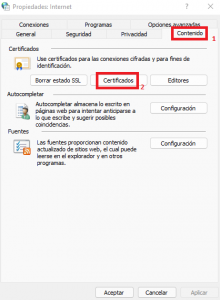
- In the “Internet Properties” window, select the “Content” tab and then click on the “Certificates” button.
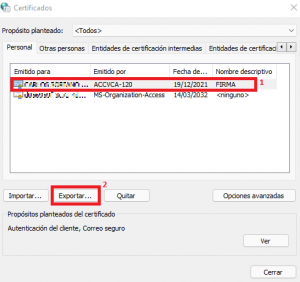
- Now select your personal certificate and click “Export”.
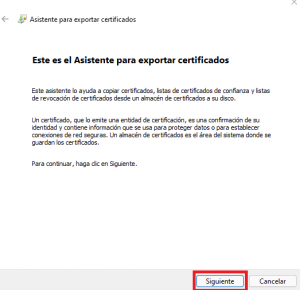
- This will start the Certificate Export Wizard, simply click “Next”.
- Now select “Export the private key” and click next. If this option is not available, check the note at the end of this article.
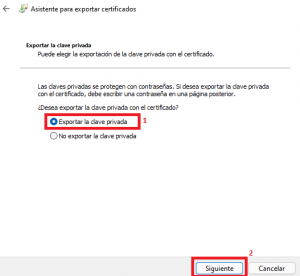
- Leave the default options and click “Next”.
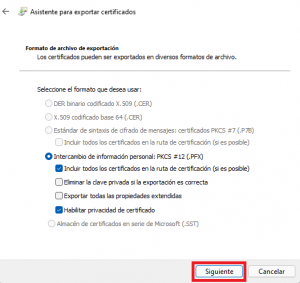
- Now check the “Password” option and define one. Then select “Next”.
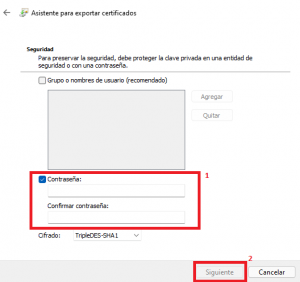
- At this point, you may be asked for a password to continue, you must enter the same one you used to sign.
- Now click “Browse”, this will allow you to select the name and path where you want to save your exported certificate.
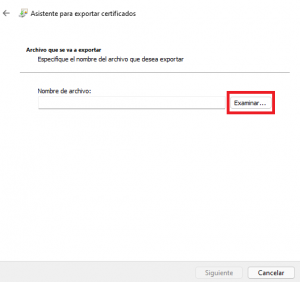
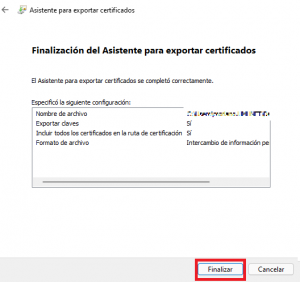
- We have now completed the certificate export, we just need to click the “Finish” button to complete the process.
| Note
If we are at step 5 of this tutorial and it is not possible to check the “Export the private key” option, it will not be possible to correctly export our certificate, so we will need to locate the original certificate (the one we downloaded from the ACCV website) and follow our article How to install a digital certificate for proper configuration. |