How to install a digital certificate on a Windows system
Since the introduction of the electronic DNI, digital certificates allow you to carry out official procedures online, without having to do them in person. We explain how to import and install them in the Windows credential store through the operating system’s wizard.
Detailed guide
- Locate the certificate on your computer
The file corresponding to your digital certificate will be on your hard drive or on a USB drive. You need to find it to be able to import it later into the browser. Its name is usually composed of a series of numbers or a username followed by the extension .pfx or .p12. - Run the Digital Certificate Installer
To run and install your digital certificate in Windows, you just need to double-click on it.
- Follow the installation wizard
Once you have done this, you will see an additional window appear. This is the installation wizard, which will guide you through the entire process until the certificate is finally registered in the system. Click Next.
- Select the certificate
The installation wizard will ask you to indicate which certificate you want to import into your system, Windows in this case. You can also click on Browse and search your file system for the digital certificate file. Then click Next.
- Set a password to protect your digital certificate
Apart from the password that comes with the file, the wizard asks you to set a usage password to protect your certificate. Just type it in the text box that appears in the window and click Next.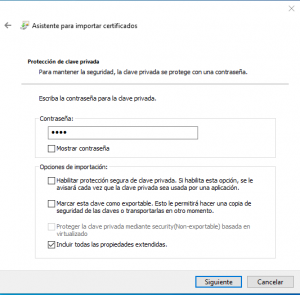
However, you must first check the three boxes that appear under the password. These allow the certificate to be encrypted with the password you just entered and to be exported for use on other devices. - Finish the wizard
The next two steps only offer an additional option: to select the digital store where you want your certificate to be saved. It is not necessary to do this manually, so you can leave the default option checked, which enables the automatic selection of the certificate store. Click Next.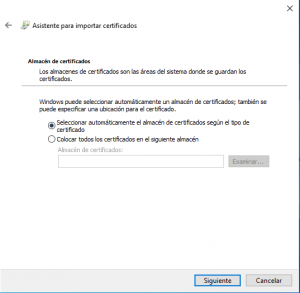
You can finish the installation wizard by clicking Finish.