How to activate Adobe Acrobat
The University holds an Adobe Acrobat Professional license, which allows you to activate the product on up to two work devices using your UMH account.
This license is available for PTGAS, PDI, and PI personnel, provided it is used for academic and administrative activities related to the University.
If you exceed the product activation limit, Adobe will show an error on screen. There is no need to worry about this, as this tutorial will show you how to activate the license and what to do if you exceed the limit.
1. How to Activate Adobe Acrobat
Detailed Guide
- When you launch the application for the first time, the following window will appear, requesting your account information.
- In the “Email address” field, enter your Universidad Miguel Hernandez email and click “Continue.”
 Next, you will be asked to select the account type; select the option “Company or school account.”
 You will then be directed to the Universidad Miguel Hernandez login website. Use your usual username and password and click accept. You may be asked for your Two-Factor Authentication code after entering the password.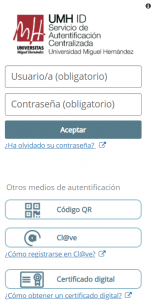
Congratulations! You have now activated your license, and the Adobe application will function with all the premium tools for work.
2. How to Activate a Product After Exceeding the Limit
Detailed Guide
- If, when opening Adobe on a device or activating the license, the software indicates that you have exceeded the activation limit, Adobe will display a window.

- You will see that you are offered the possibility to release the license from one of your computers, so select one of them and click “Log out”.
- After this, your Adobe license will be active on the new device.