How to install Trend Micro Titanium Internet Security (WINDOWS)
In this article we will see how to download this software.
We offer software downloads under a CAMPUS license, subject to an agreement and conditions that you must read and accept in order to download.
IMPORTANT BEFORE INSTALLING: It is very important that before installing the antivirus, you uninstall any previous version or any other antivirus program you have from Add or Remove Programs.
Detailed Guide
Before installing this software, you must consider the following requirements for your Operating System: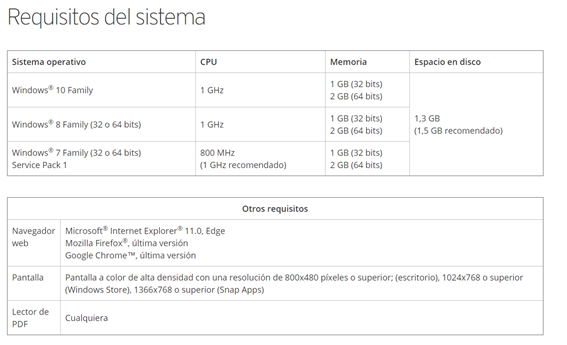
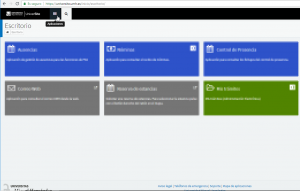
- Go to universite.umh.es and click on Applications.
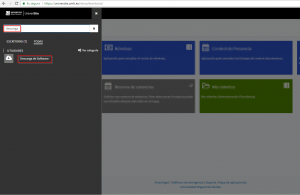
- In applications, search for Software Download and click on Software Download.
- Click on the antivirus version according to your operating system, choosing the version of Trend Micro Titanium Internet Security (WINDOWS).
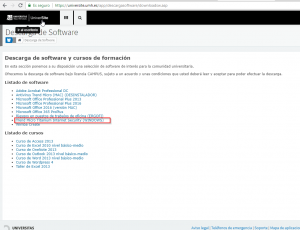
It shows you the following screen: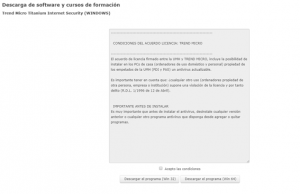
- You must accept the conditions and click on the appropriate version of the Operating System Win 32 or Win 64. You can check the version of your operating system in Control Panel -> System and Security -> System.
- On the next screen, you can download the software and it shows you the program’s license code. It also sends you an email with the conditions associated with this download and you have to click on → here.
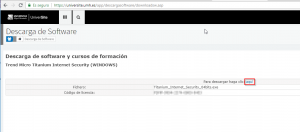
- The file Titanium_Internet_Security_64bits.exe is downloaded, and you have to click where the mouse cursor is located in the following screenshot and then on Open. This screenshot is taken with the Google Chrome browser, but downloading a file is very similar in other browsers and by default, they are stored in the “Downloads” folder on our computer.
IMPORTANT BEFORE INSTALLING: It is very important that before installing the antivirus, you uninstall any previous version or any other antivirus program you have from Add or Remove Programs.
- When starting the execution, you must click Yes to allow changes.
The installation program performs a system check before starting the installation:
- Once the system is checked, if everything is correct, it begins to prepare the installation.
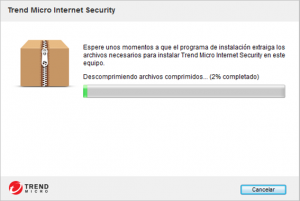
- You have to check the serial number and click Next.
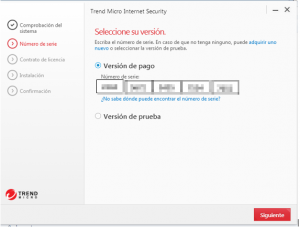
- In the next step, you must click Accept and Install (You accept the license agreement and the installation begins).
The Installation begins:
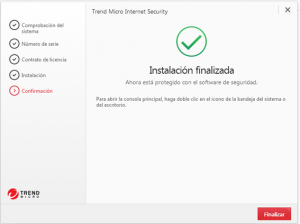
- Once the installation is complete, click Finish.
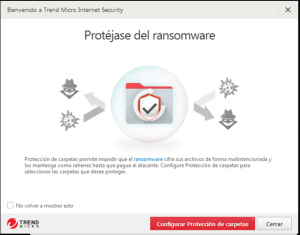
- You can protect yourself from ransomware; to do this, you must click on Configure Folder Protection, or otherwise click on Close.
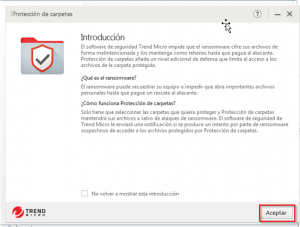
- If you clicked on Configure Folder Protection, the following screen will appear with a brief explanation of ransomware. Click on Accept.
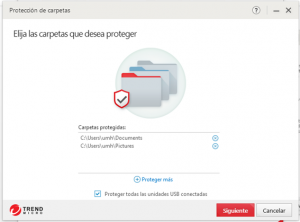
- In this step, you must choose the folders to protect and click Next.
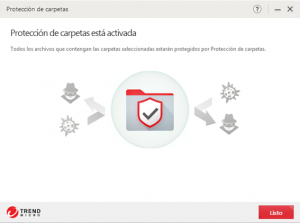
- It informs you that it is now activated. Click on Done.
- In the final step, it shows that your system is Protected.
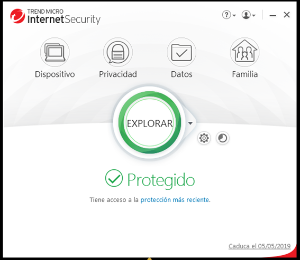
Congratulations, you have successfully installed Trend Micro Titanium Internet Security.