How to install Autodesk Education
The software obtained can only be used for purposes directly related to learning, teaching, research, and development that are part of the educational functions carried out by a qualified educational institution, and should not be used for commercial or professional purposes, nor for other lucrative purposes.
Detailed Guide
- Go to universite.umh.es and following this article “How to download software available for use” search for “Autodesk Education” and click.

Software Download
- In the next window, click on the link to the official website autodesk.com/education/free-software/all where we will proceed to download the software.
- On the software website, click on the option that says “Already have educational access? Sign in” because it will give us the option to download the software with our university access.

- Now we will proceed to create an account on Autodesk by clicking on “CREATE ACCOUNT“.

- Select Country (Spain), Educational role (if we are students or PDI) and Institution Type (University/Post-Secondary) and click “NEXT“.

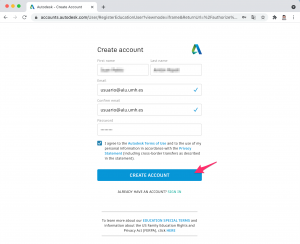
- Fill in the fields with our UMH data (in the student email it is important to fill in with the domain @alu.umh.es and NOT with @goumh.umh.es).
- Then click on “CREATE ACCOUNT” and follow the registration instructions.
- During the registration process, when requested, you must verify that you belong to UMH by attaching documentation such as a tuition receipt, university card, etc.