How to reserve a virtual computer for free practice
In this article, we will explain how to reserve a virtual computer for free practice.
Detailed guide
- We access our identified access https://universite.umh.es with our UMH username and password and log in.
- We click on “My Subjects”.

- Now we click on “Free Practice”, on the left side.

- We choose the software we are going to use.

- Now we click on “Reserve a PC”.

- We click on “Access the PC”.
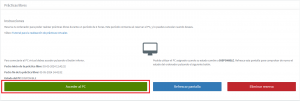
- We click on the second computer that appears “Free Practice”.

- Finally, we click on “Connect”.

In case of not having the UDS Client installed, it is recommended to read this section:
To enter the UMH Virtual Desktops platform, we will go to the address https://escritoriosvirtuales.umh.es and log in with our UMH account.
The desktops have the following characteristics:
- These are desktops with the software used for practice. Each student or teacher will see a desktop depending on the faculty they belong to.
- They are temporary desktops. Once the session is closed or they are turned off, they are deleted.
- If the desktop is not used for 15 minutes, it will notify us that the inactivity time has been exceeded. If after 2 minutes the desktop is not used, it will automatically disconnect.
- After 5 minutes from the disconnection, the desktop is deleted. There is a possibility to reconnect to the same virtual desktop during those 5 minutes.
- Two types of connections to the virtual desktop are allowed: via HTML5 (web browser) or via UDS client (desktop application), by default the latter is the option selected when clicking on the desktop icon.

Access via Remote Desktop allows us to share files between our personal computer and the virtual desktop, it is the recommended option if we have a personal computer.
Access to the desktop via HTML5 does not require an installed client and is designed to be accessible from any type of device (mobile, tablet, etc.). With this type of access, we will not be able to access files on our device.
The different UDS clients available for download can be found in the «UDS Client» menu. In addition to the UDS client, an RDP client must be installed.
It is recommended to work with cloud resources, such as Google Drive, to store data, as files deposited on the virtual desktop will be deleted once the session is closed.
If the student does not have access to any desktop, the following error will appear:
This error may be due to the fact that the degree we are studying does not yet have a defined virtual desktop.
HELP VIDEOS:
INSTALLATION OF UDS CLIENT TO ACCESS VIRTUAL DESKTOPS VIA REMOTE DESKTOP
| Warning
The virtual computer will be available for 2 hours. |