How to set up Wi-Fi access for guests
29 July 2026
This article will explain how to set up Wi-Fi access for visitors and guests at UMH.
UMH has a wireless network, designed as an alternative connection method to traditional wired connections. This aims to cover the needs of users who require specific connections in a dynamic and flexible way.
There are three types of connections available:
- Secure connection: Iumhnet
- Secure connection: eduroam
- Open connection: Iumhweb
Iumhweb is an open wireless network specifically designed for UMH visitors who do not have institutional credentials (domain user or student PIN). Access is managed through a captive portal, which allows guests to easily validate themselves to enjoy a Wi-Fi connection on campus.
Below we will see how to connect to the Wi-Fi network if you are a visitor, using the open network.
Detailed guide
- Enter your device’s Wi-Fi network settings and connect to the “Iumhweb” network.
- You will now be redirected to the Universitas Miguel Hernández captive portal. If after a few moments the screen does not appear on its own, open your usual web browser and load any page to force the prompt.

- At the bottom of the window, you must accept the terms of use by checking the box.
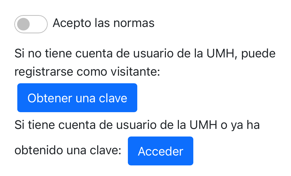
- If you do not have a password, select the option “Obtener una clave” (Obtain a password) to register as a visitor. Please note that the password is valid for 7 days. If you already have a prior access password, click on “Acceder” (Access) and skip to step 7 of this manual.
- Fill out the form indicating your mobile phone number so that an SMS with the password can be sent to you.
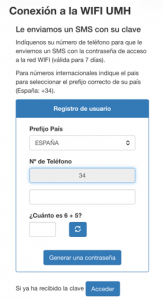
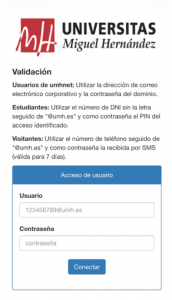
- Once you receive the password, your Username will be your mobile number followed by “@umh.es” (example: ).
- Enter your username and the password obtained in the captive portal to log in.
Please note: Remember that when using the open Iumhweb network, you will have to repeat this validation process every time you connect. For any technical incident, the User Support Center is available at 96 665 8582.
| Note:
You can use the username and password generated in step 5 to connect to eduroam or Iumhnet if you prefer a more secure network. Below, we show you how to set up access on your device: |