How to enable two-factor authentication
22 May 2026
To access university accounts, two-factor authentication (2FA) must be enabled for enhanced security.
To enable two-factor authentication, simply follow the simple steps detailed below.
- Increase my account security:
- First, we need to authenticate through the identified access portal. To do this, go to the https://umh.es page and click on the icon that looks like a user profile:

- Once you have entered your username and password, a message will appear indicating that you must increase your security:
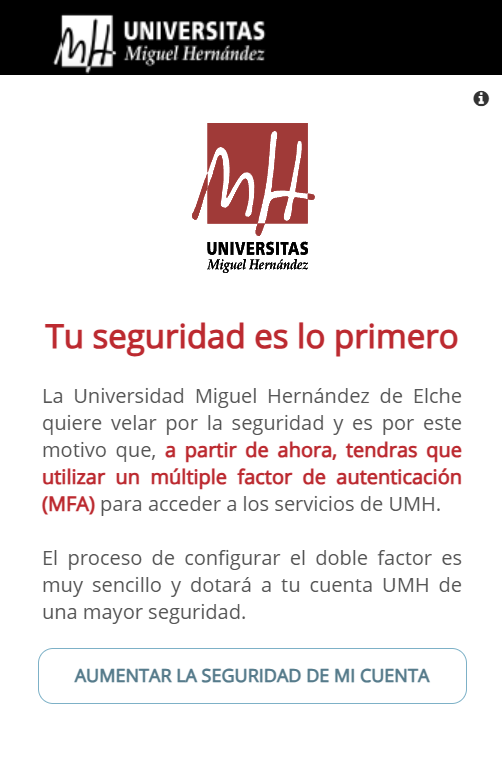
- Click on the “Increase my account security” button. The following screen will then appear:
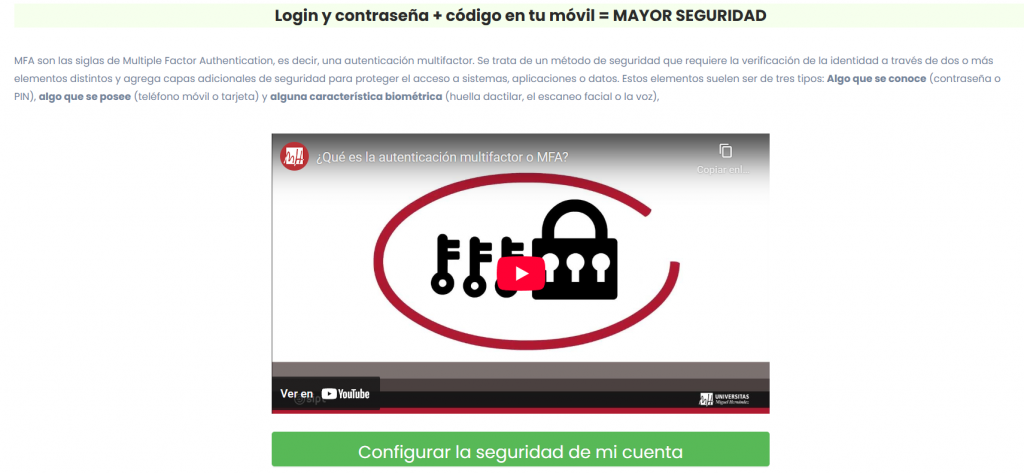
- A brief explanation of what two-factor authentication is will be shown here. If you want to configure it, click the “Configure my account security” button.
- First, we need to authenticate through the identified access portal. To do this, go to the https://umh.es page and click on the icon that looks like a user profile:
- Personal data:
- Clicking the button will open the personal data screen. It is very important to provide both a mobile phone number and a personal email address so that you can recover both your UMH account and the verification code or two-factor authentication.
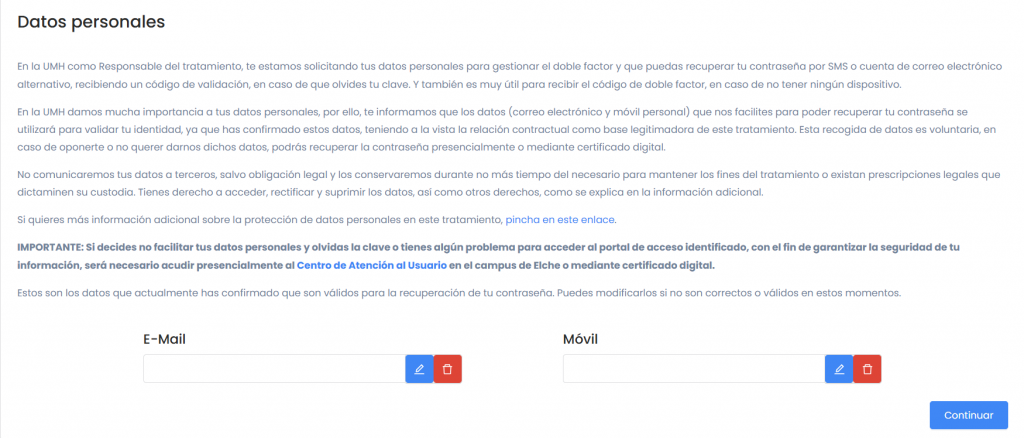
- To enter both the email and the mobile number, click on the pencil icon button and then click on the checkmark button that appears in place of the pencil icon

- Then click the continue button.
- When you click the continue button, a PIN will be sent to both your email and your mobile phone, provided that the data has been filled in and validated.
- Clicking the button will open the personal data screen. It is very important to provide both a mobile phone number and a personal email address so that you can recover both your UMH account and the verification code or two-factor authentication.
- Install the UMHApp:
- Next, it will recommend installing the UMHApp, where you will receive the two-factor authentication codes. Once installed, you must log in to the UMHApp using your UMH username and password. If you do not log in, you will not receive the verification code required to complete the two-factor authentication setup:
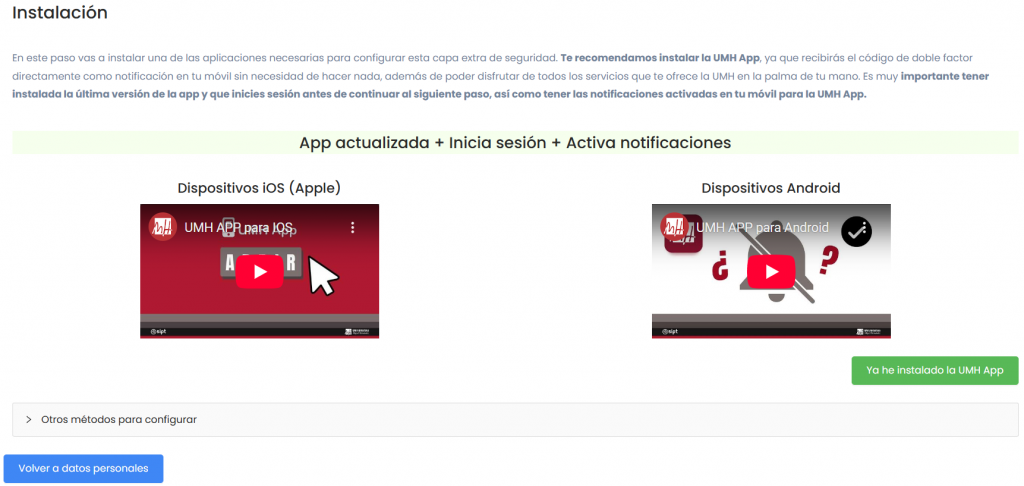
- In addition to the UMHApp, there are other applications available to retrieve the two-factor authentication code, both for your computer’s browser (extension) and on your mobile phone. Simply follow the videos to install and configure the different applications:
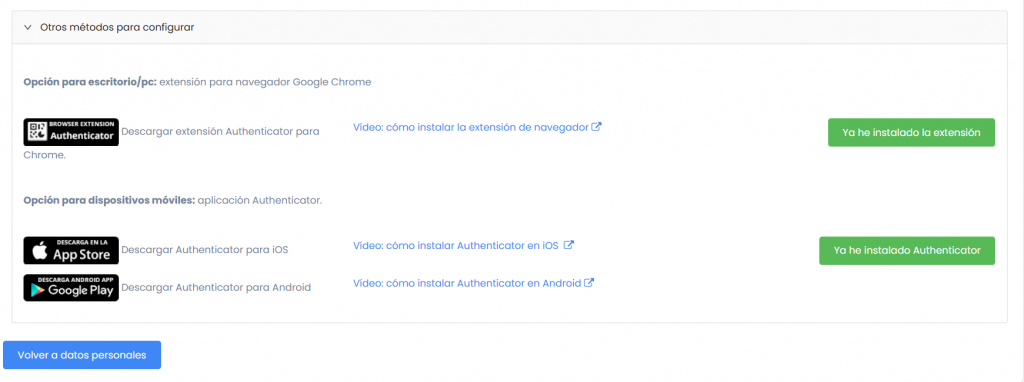
- Once you have installed the UMHApp, click the “I have already installed the UMH App” button.
- Next, it will recommend installing the UMHApp, where you will receive the two-factor authentication codes. Once installed, you must log in to the UMHApp using your UMH username and password. If you do not log in, you will not receive the verification code required to complete the two-factor authentication setup:
- Enter the validation code:
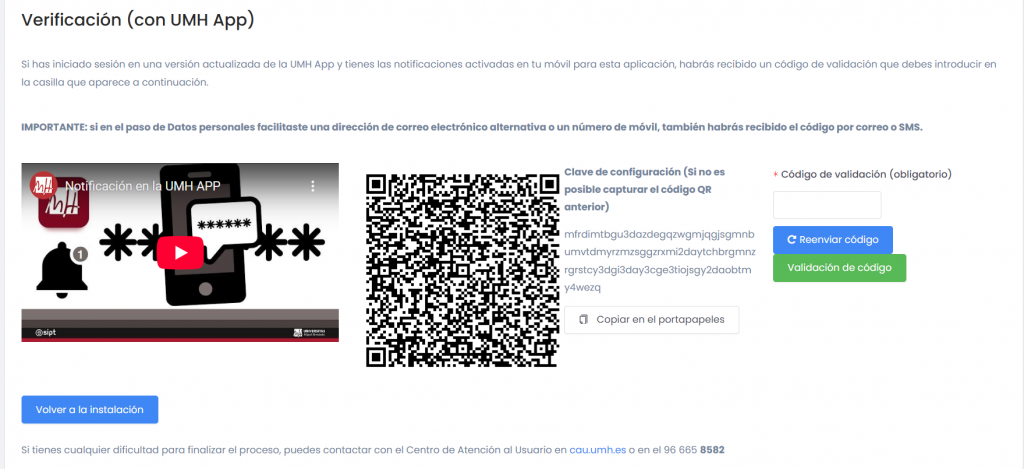
- Finally, you will receive the verification code. Enter it and click the “Validate code” button:
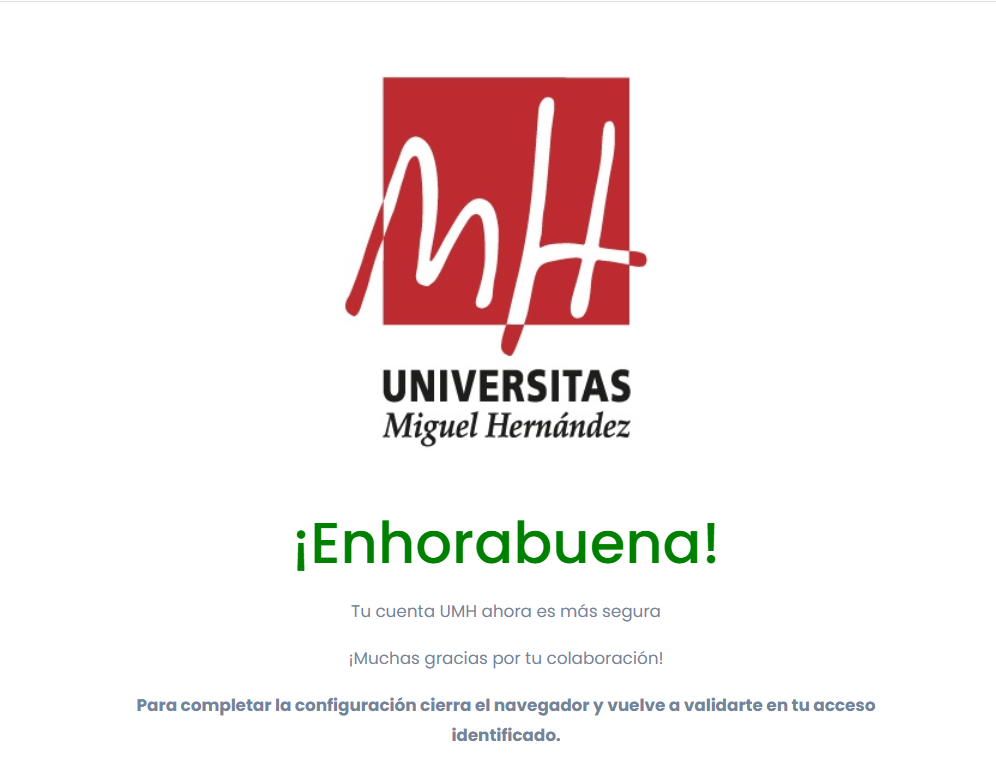
- Once the process is complete, this screen will appear indicating that you now have two-factor authentication enabled:
- Finally, you will receive the verification code. Enter it and click the “Validate code” button:
From now on, whenever you are prompted for your university username and password, you must enter the two-factor authentication code, which will be available in the UMHApp and in any other applications you have installed and configured.