How to install a printer from the centralized printing service on a Linux system
27 March 2025
If you want to install a printer from the centralized printing service of Miguel Hernández University on a Linux computer, follow these steps.
We will need to perform two steps, first we will install the printer on our system and finally we will indicate how to install the necessary management software for its use.
Detailed guide for printer installation:
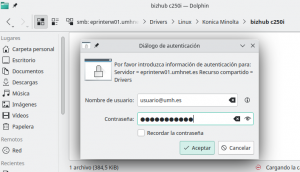
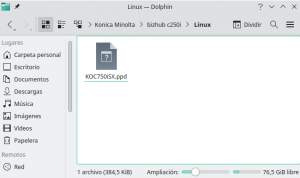
- Open the File Manager and copy the file “KOC750iSX.ppd” to your desktop, which you will find in the path “smb://eprinterw01.umhnet.es/Drivers/Konica Minolta/bizhub c250i/Linux/”, when accessing the resource the system will request your and the password you use at Miguel Hernández University.
- Open “System Settings” and go to the “Printers” section, we must click on “Additional printer settings“.
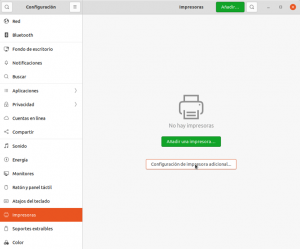
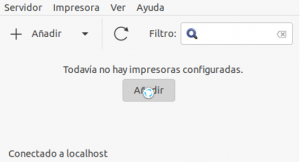
- Click the “Add” button to add a new printer.
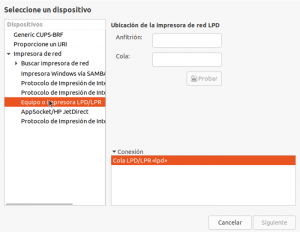
- When it asks us to select a device, we expand where it says “Network Printer” and select the option “LPD/LPR Host or Printer“.
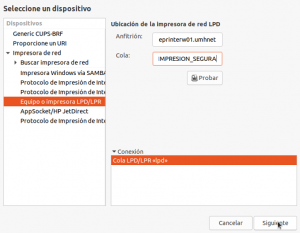
- Fill in the fields:
- Host: eprinterw01.umhnet.es
- Queue: IMPRESION_SEGURA (or UPxx)
And click “Next”.
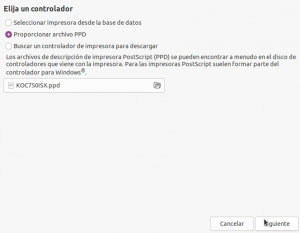
- Check “Provide PPD file“, and select the file “KOC750iSX.ppd” that we previously copied to our desktop. Click “Next“.
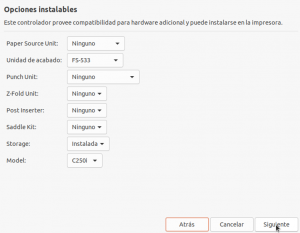
- On the “Installable Options” screen indicate:
- Finishing unit: FS-533
- Model: C250i
Click “Next”.
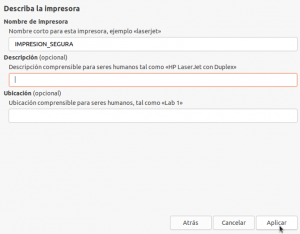
- Name the printer (we can name and describe it as we want) and “Apply“.
Detailed guide for PaperCut software installation:
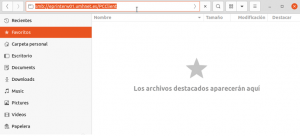
- We need to access the software location, for this from the File Manager we access the PaperCut client location by typing “smb://eprinterw01.umhnet.es/PCClient”, as shown in the image.
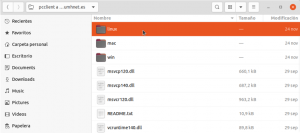
- From that folder we copy the entire “linux” directory to our local disk (e.g. home/PCClient or wherever we want).
- Finally, we add it to the startup applications, to do this, from the desktop press Alt + F2 and search for «Startup Applications» if we use the GNOME desktop or «Autostart» if we use KDE.
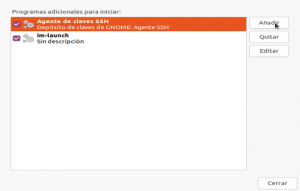
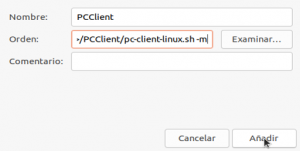
- Click «Add» and in the window that opens we indicate a name and the path where we copied the PaperCut client in the previous step.
Note: It is recommended to add the parameter «-m» so that the client starts minimized in the taskbar. (e.g.: Command: “home/PCClient/pc-client-linux.sh -m“)